Share a Sheet with Different Permissions
Here is our approach for sharing a sheet with different permission levels in Zoho Sheet in a simple way
Even a non-technical person can easily do it in just a few steps.

Approach
We can share a Zoho Sheet spreadsheet with Edit, View and comment, or View permissions using the following steps.
1. Opening the Spreadsheet
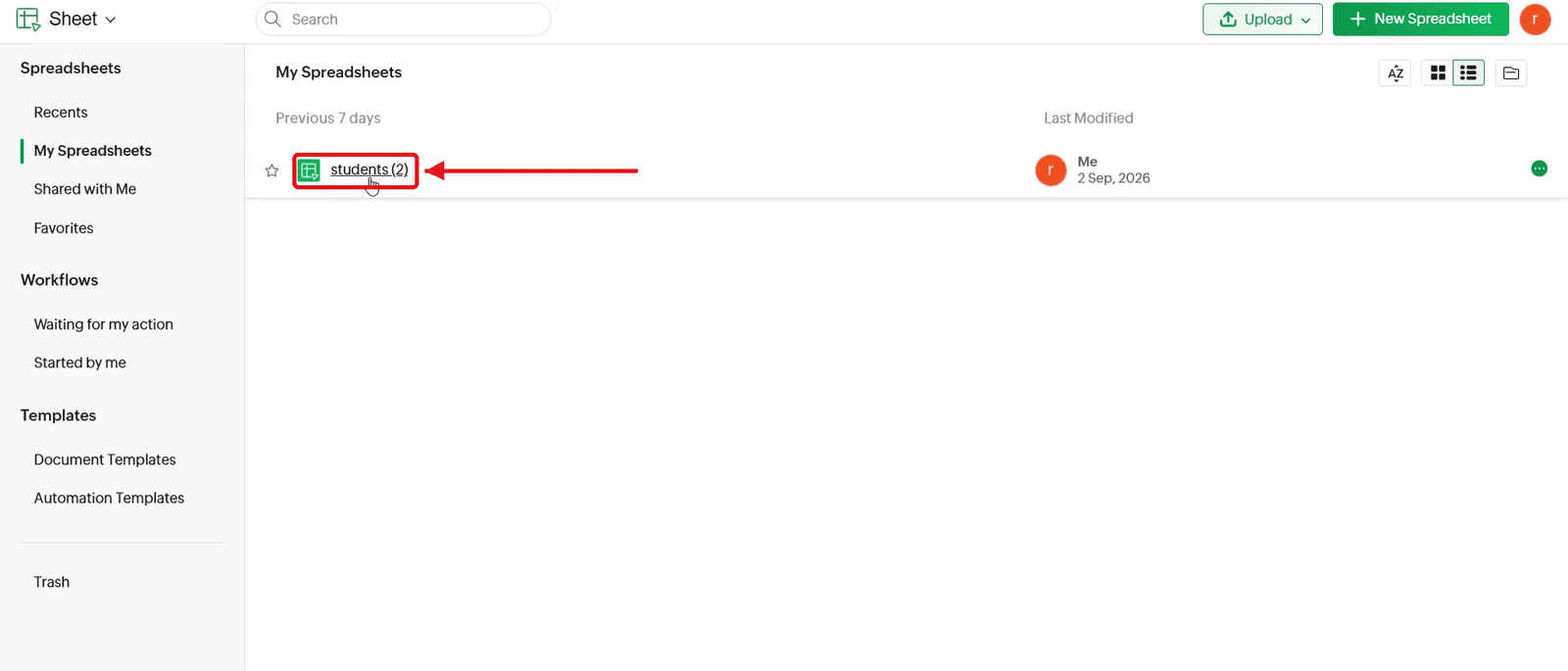
1.1 Open your Zoho Sheet dashboard and select the spreadsheet you want to shar
2. Opening the Share Options
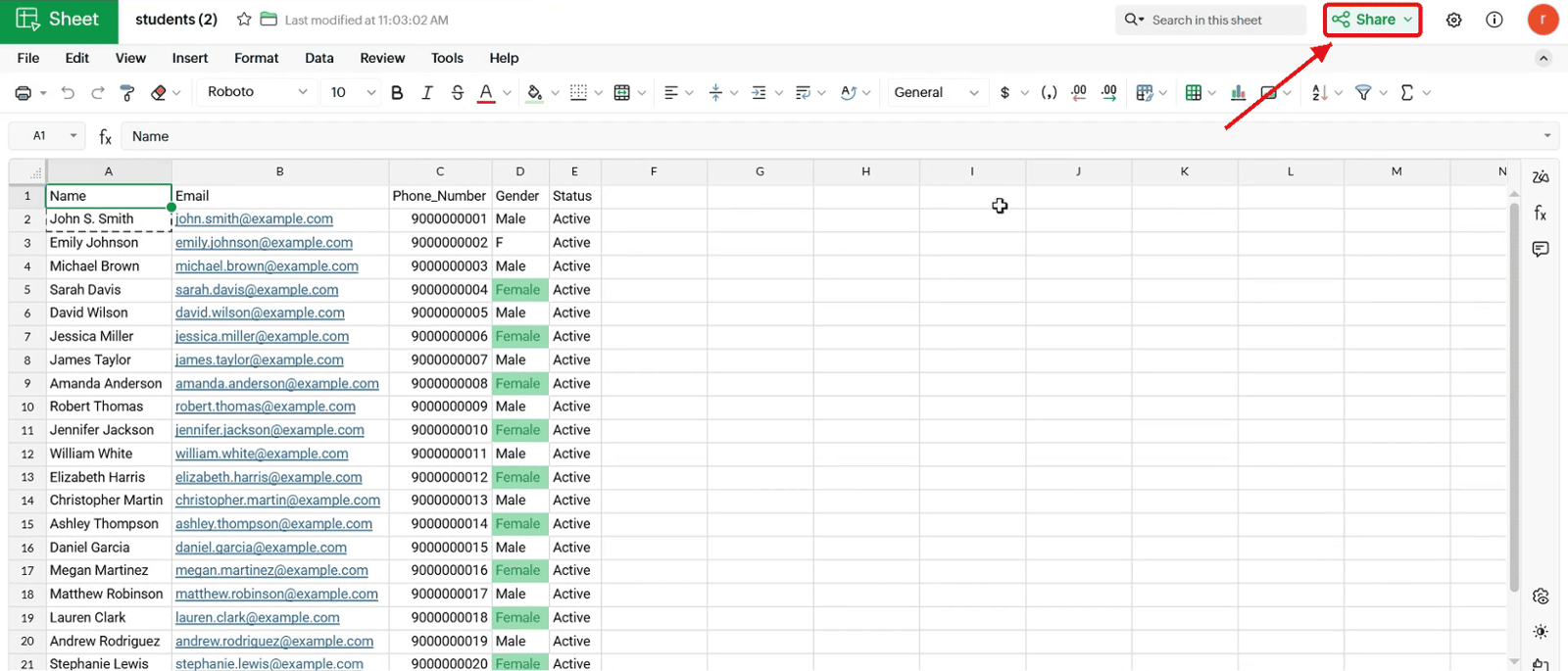
2.1 Once your sheet is open, click the "Share" button at the top right corner of the screen.
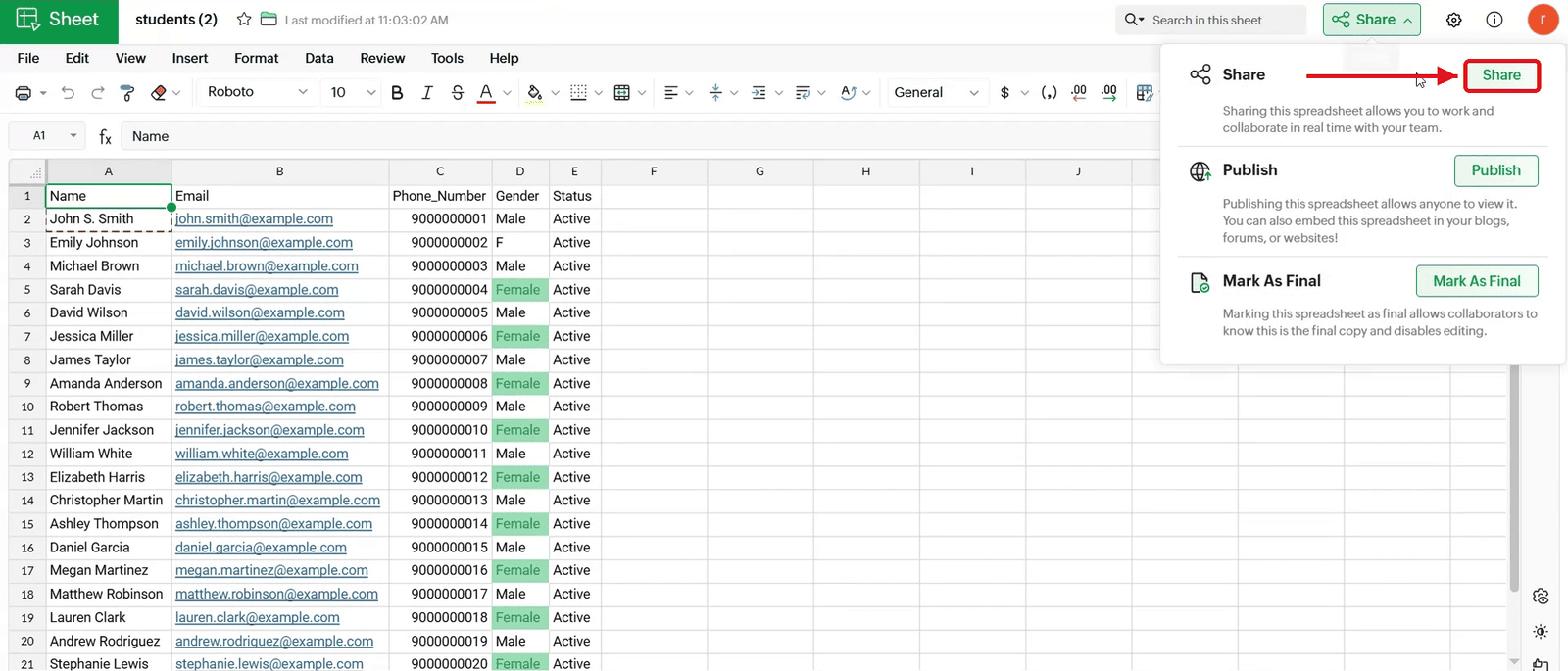
2.2 Click "Share" in the options that open.
3. Entering the Email Address
3.1 In the sharing popup, click the "Add members by email address" field.
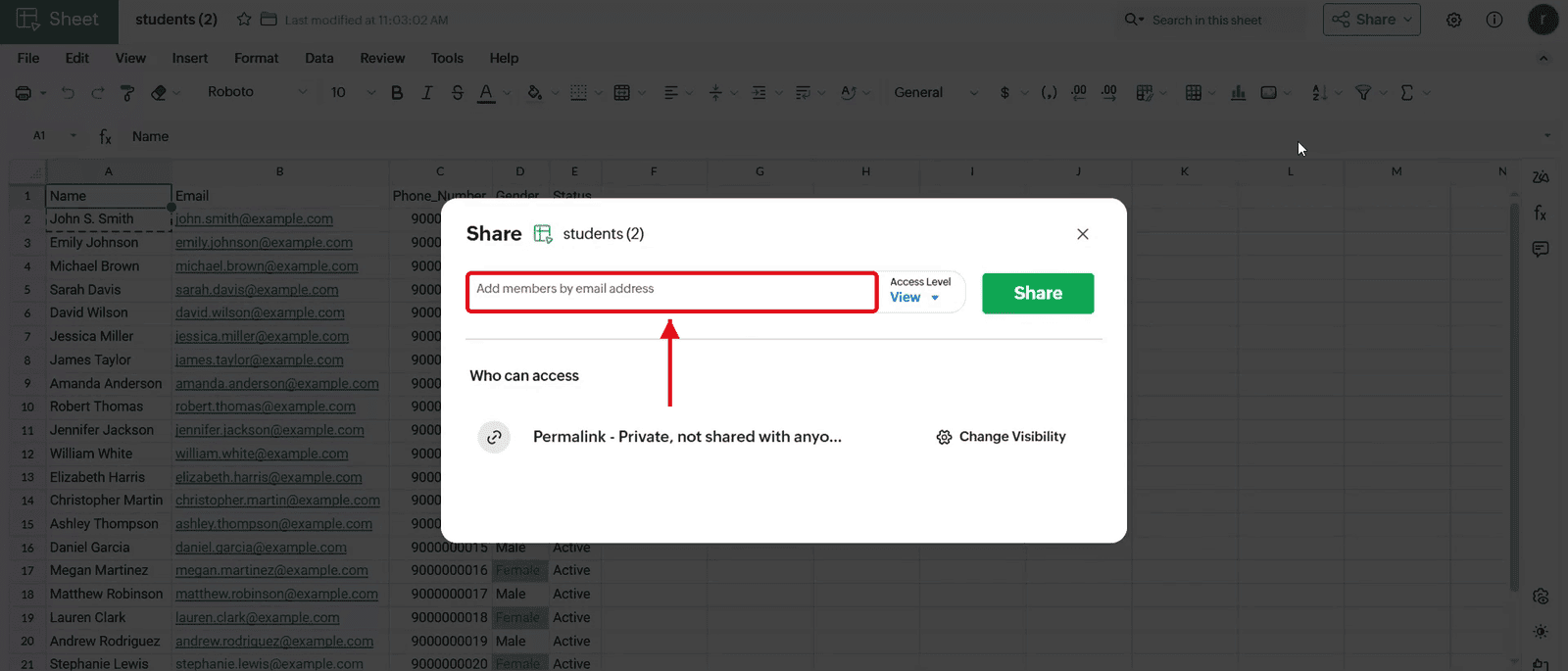
3.2 Type the email address of the person you want to share the sheet with.
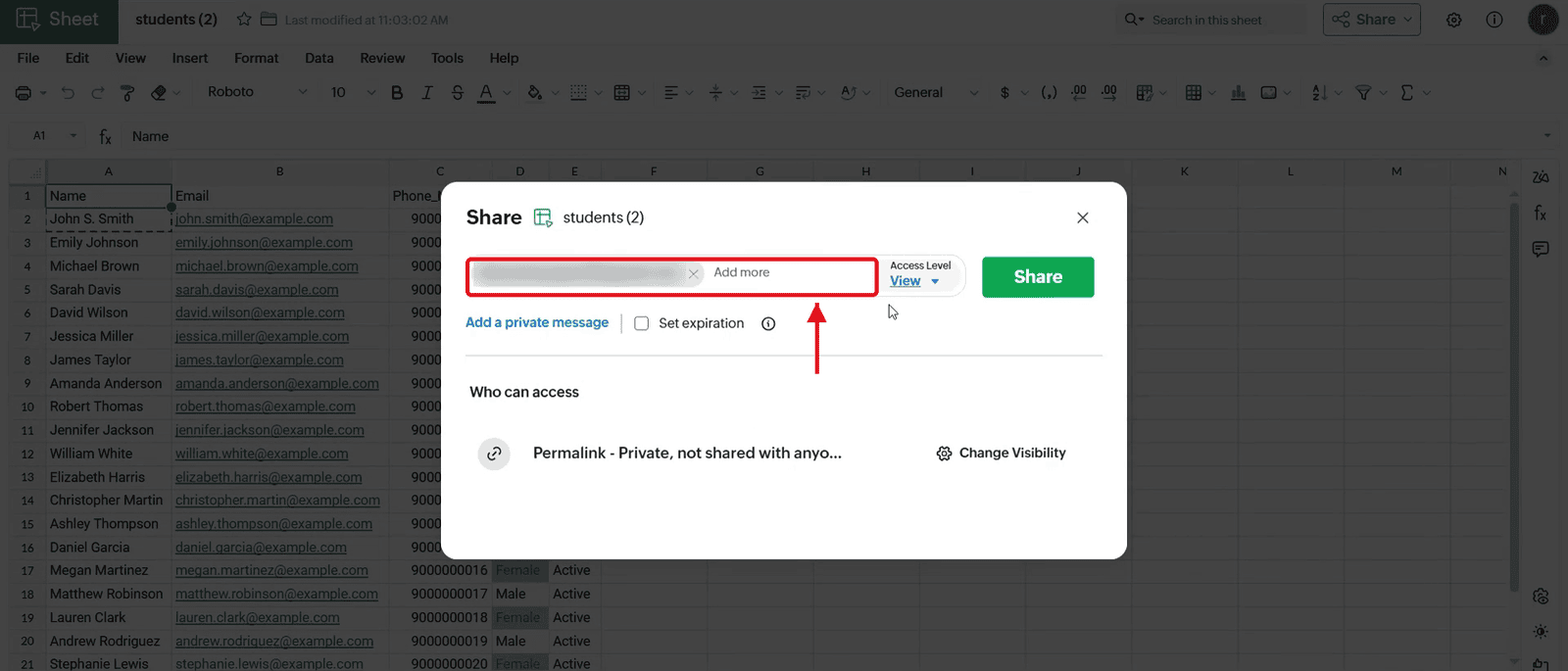
4. Choosing the Permission
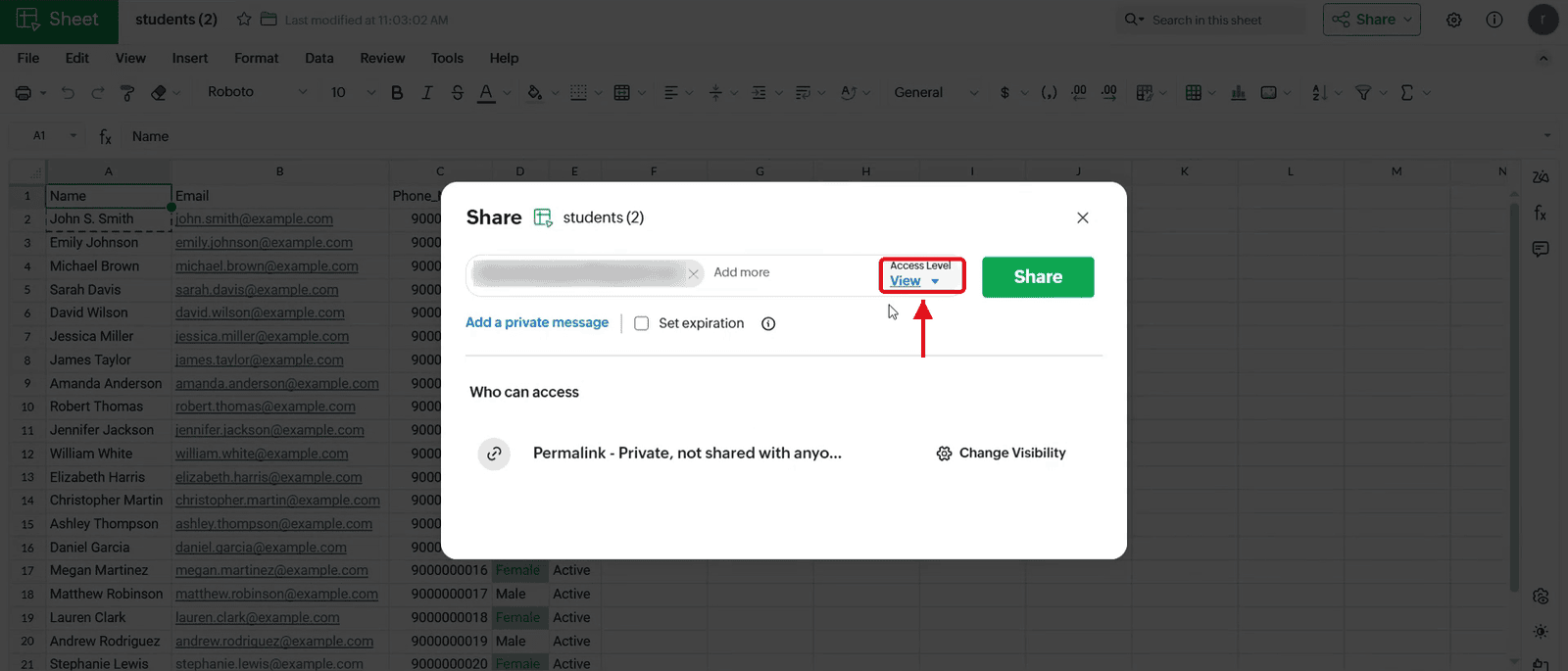
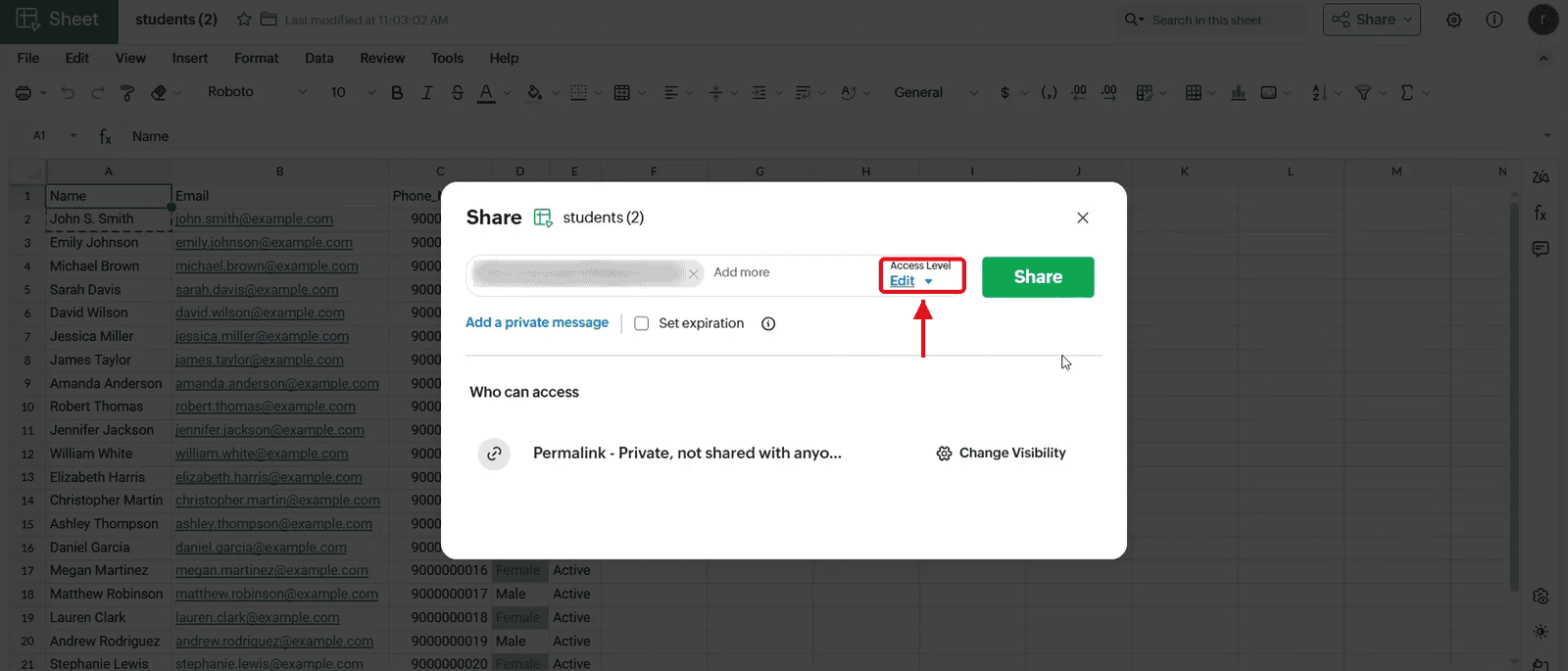
4.1 Click the "Access Level" dropdown.
4.2 Choose from the available permissions: "Edit" (can edit and comment), "View and comment" (can view and comment) or "View" (can view only).
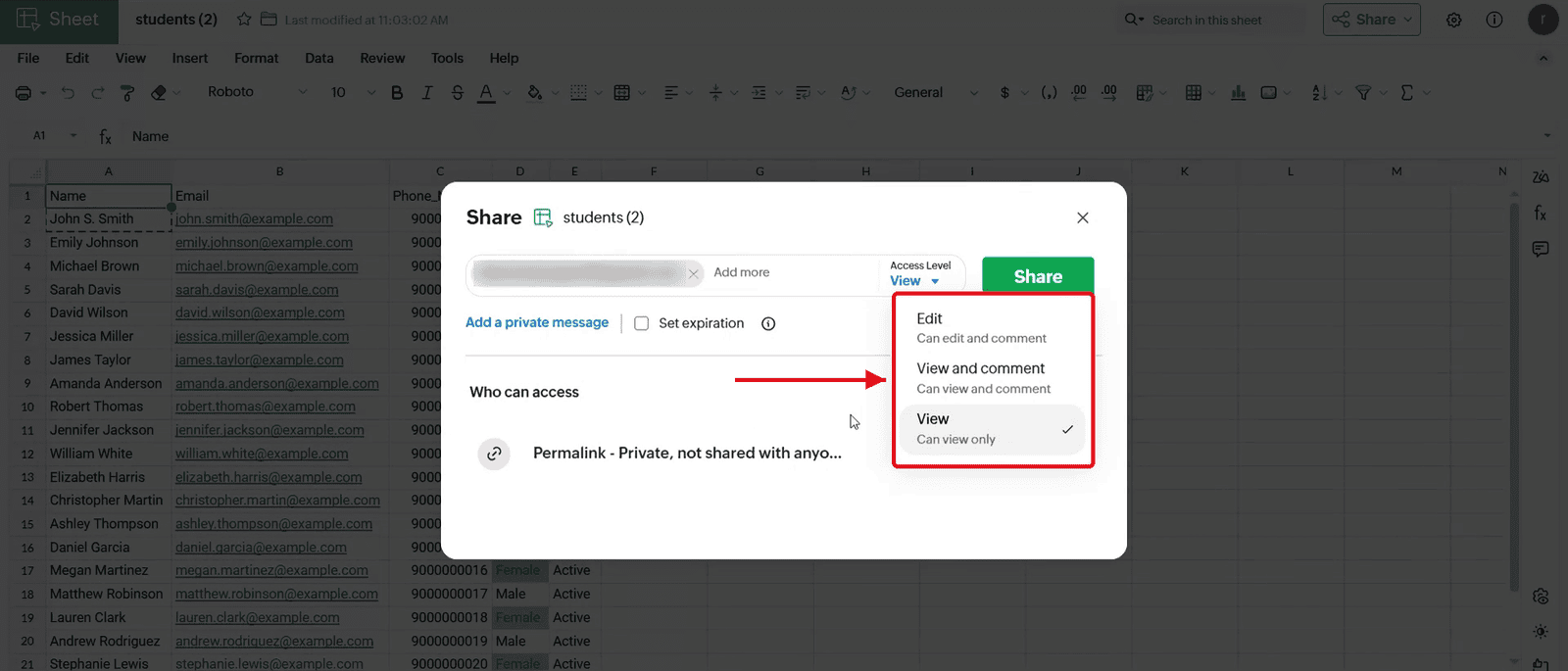
4.3 Select the permission you want. The selected level shows under "Access Level".
5. Sharing the Sheet
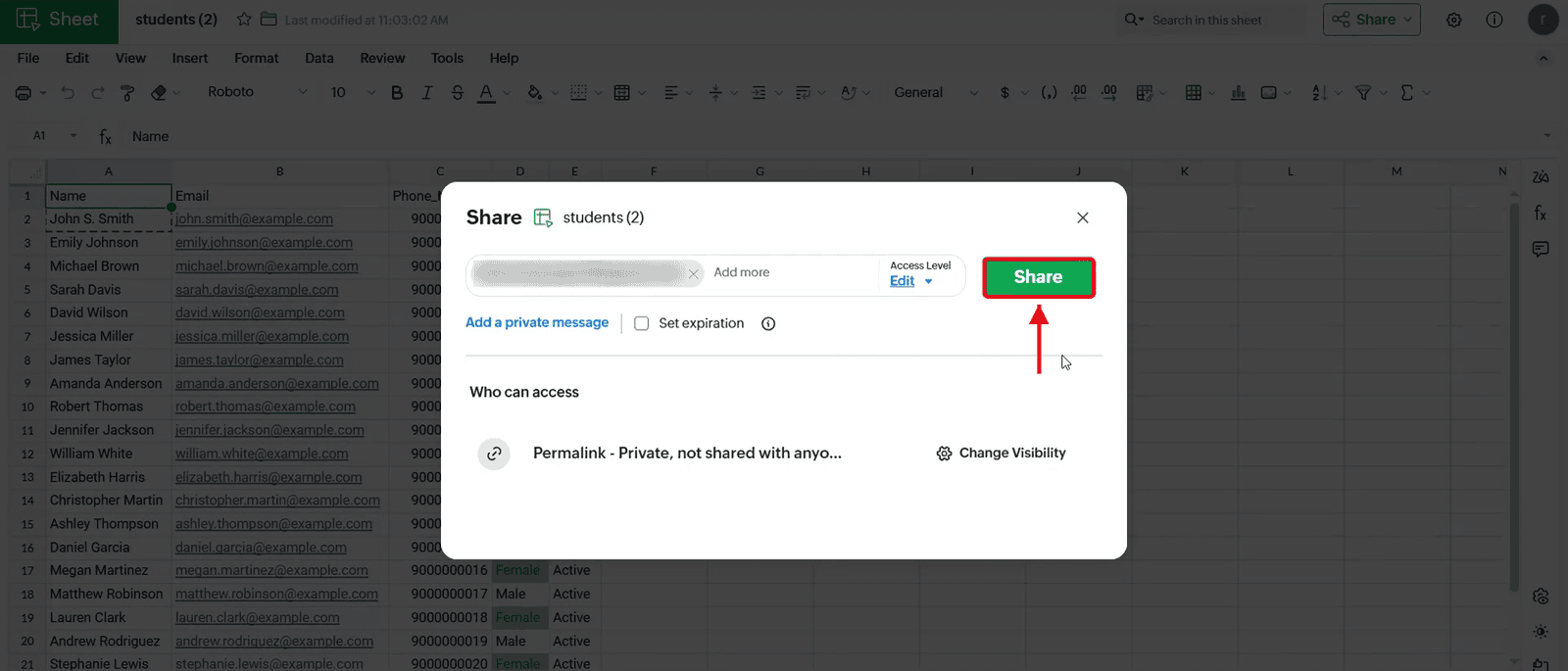
5.1 Click "Share".
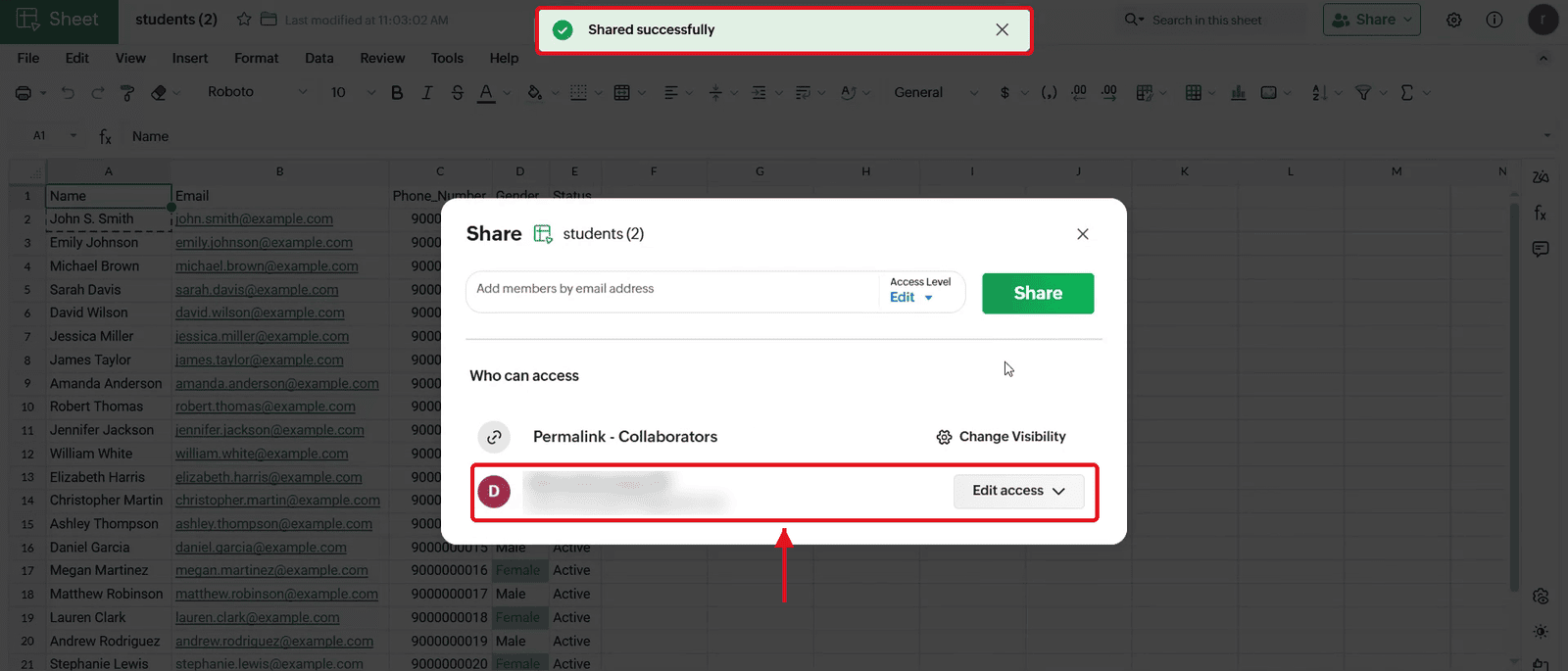
5.2 A "Shared successfully" message appears, and the person is now listed under "Who can access".
6. Changing the Permission Later
6.1 To change a permission later, click the current access dropdown next to the person's name.
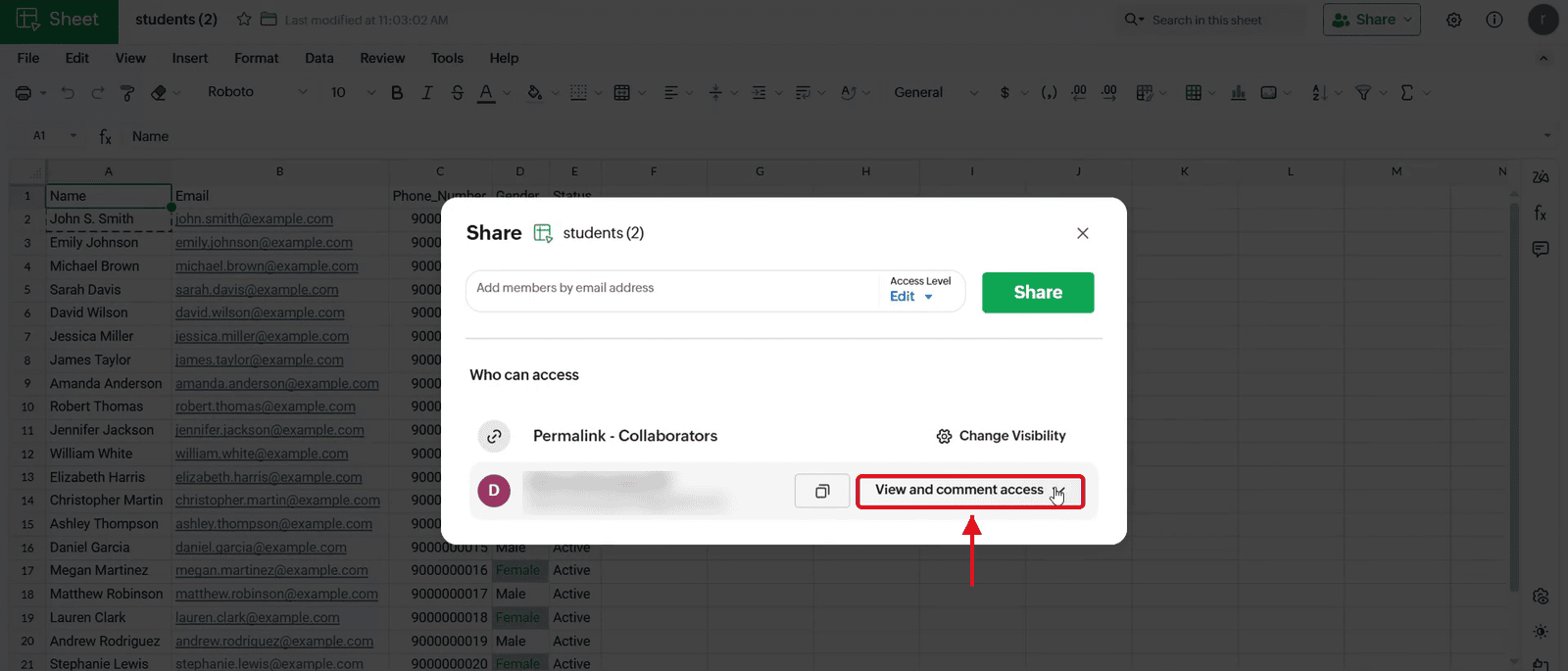
6.2 Select the new permission level from the list. An "Access level updated" message confirms the change.
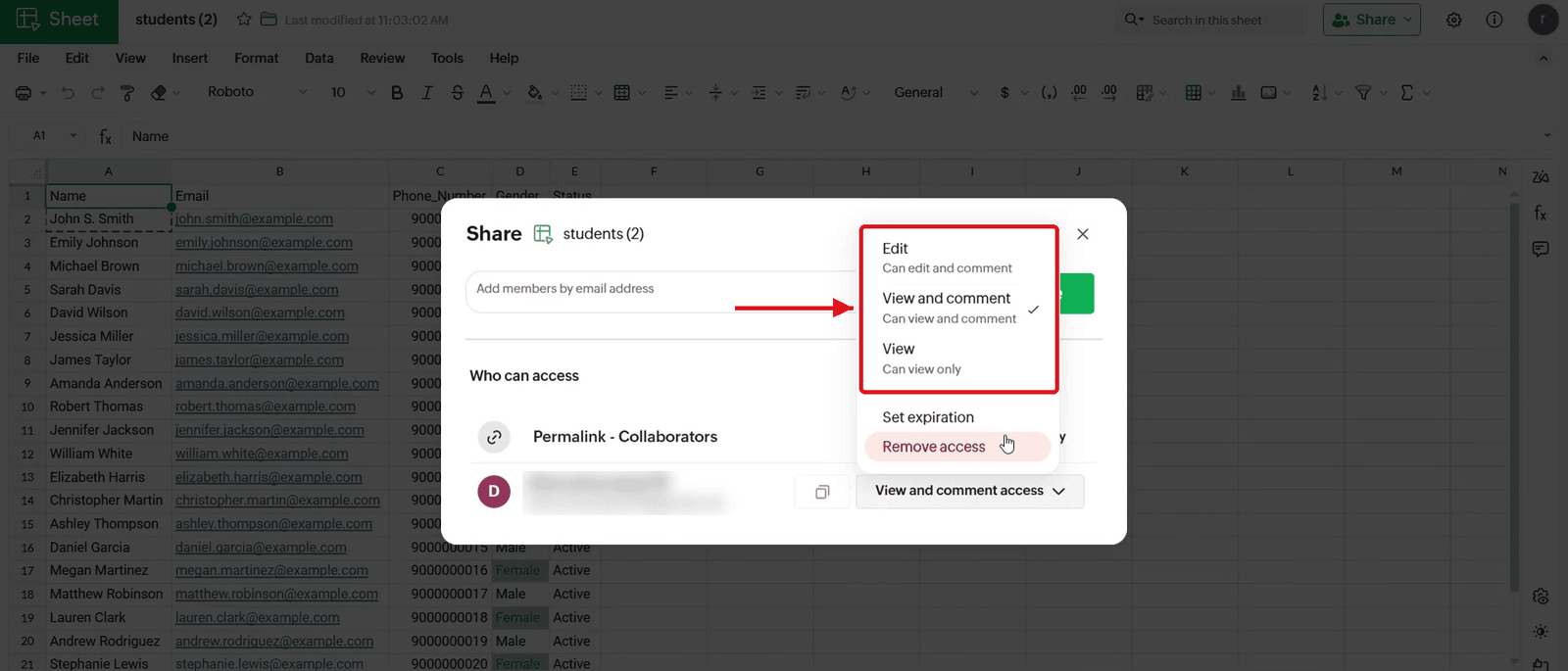
7. Setting an Expiration Date
7.1 Click the access dropdown next to the person's name and select "Set expiration".
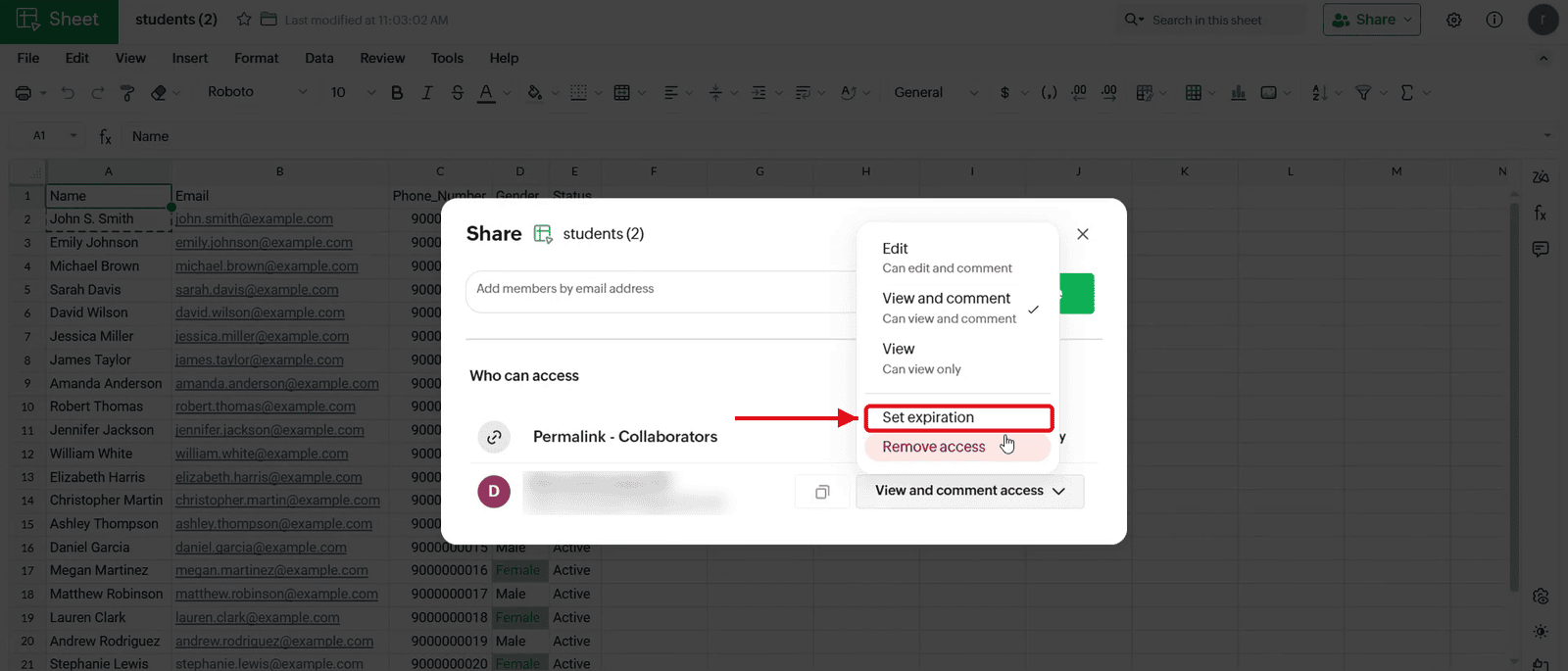
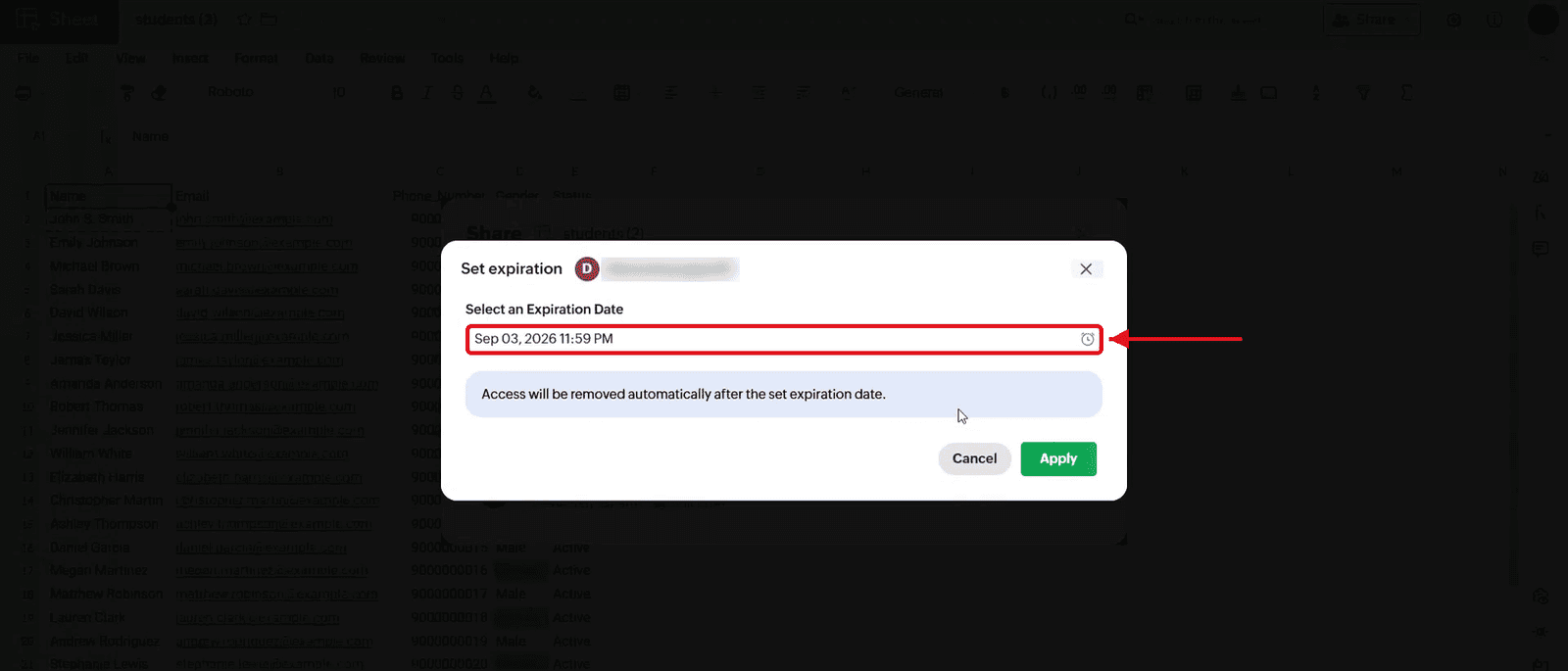
7.2 In the "Set expiration" window, pick the date and time when the access should end.
7.3 Click "Apply".
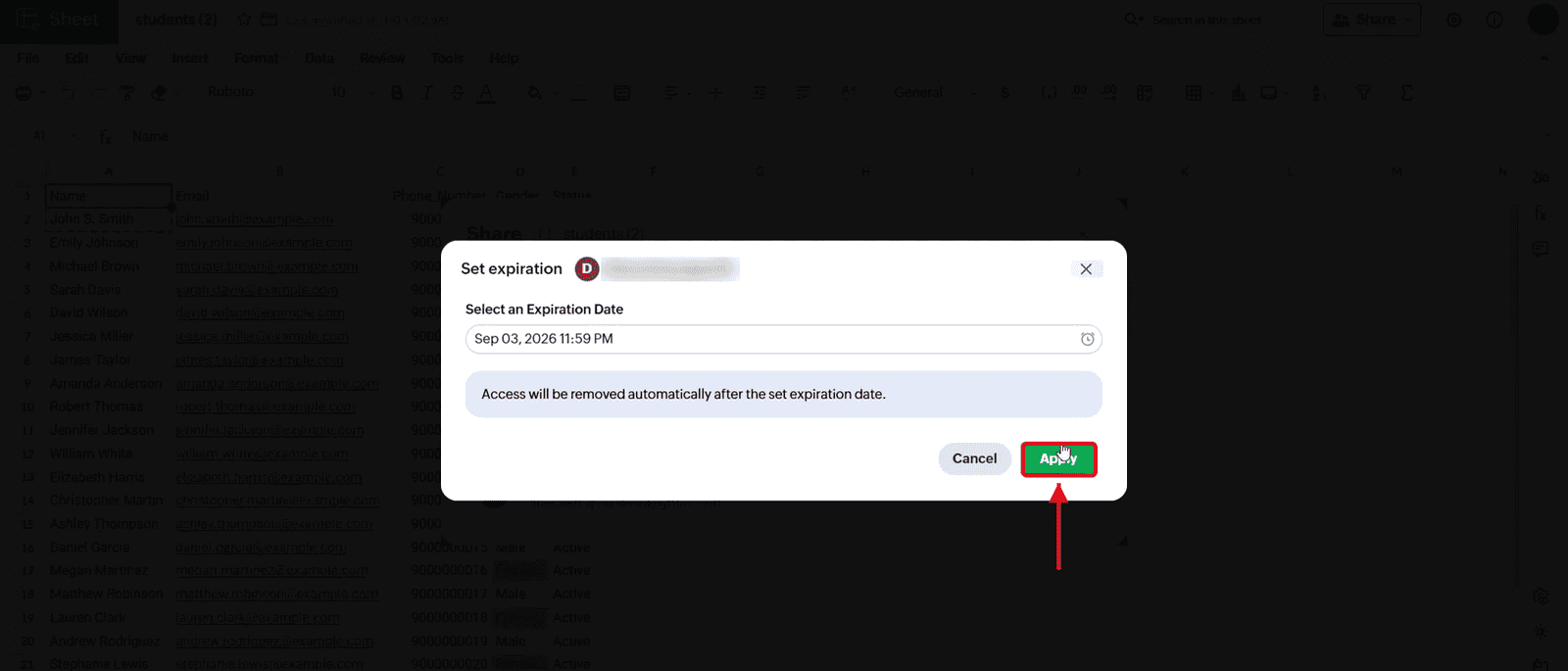
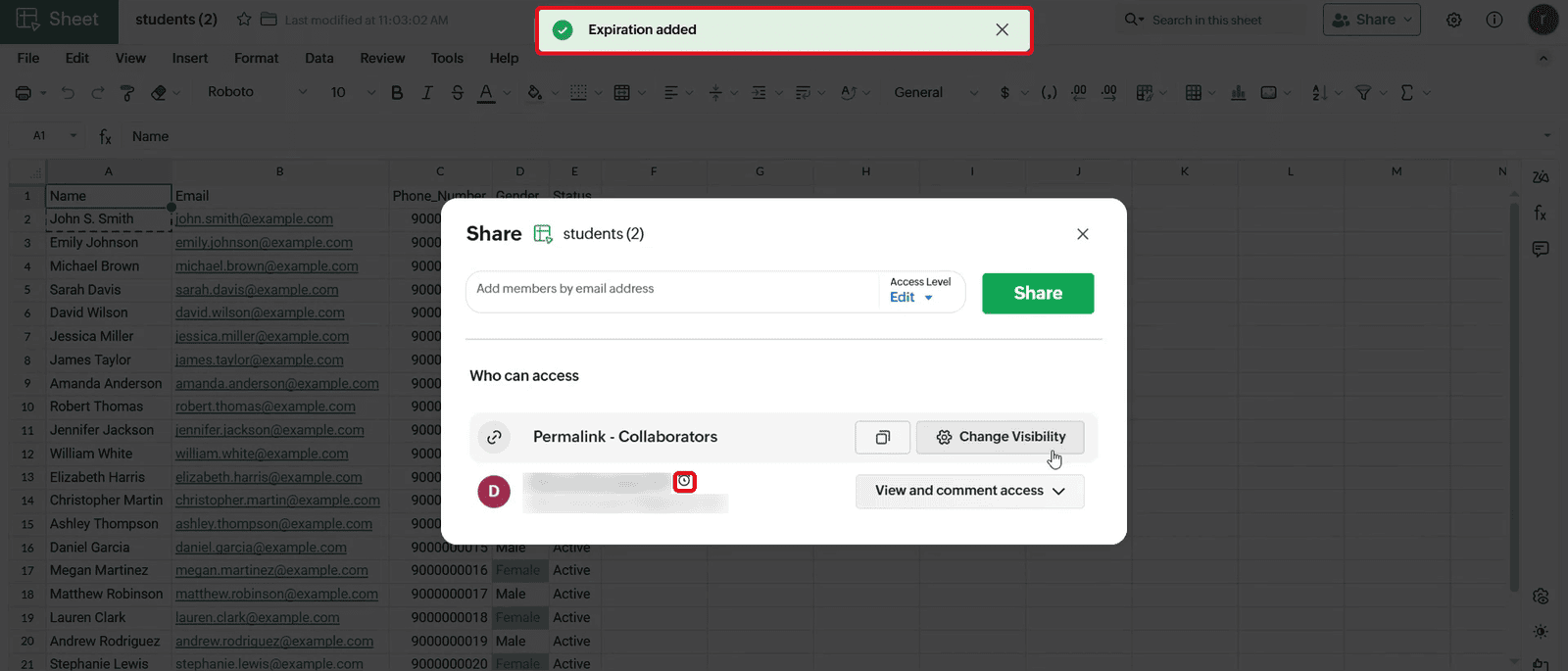
7.4 An "Expiration added" message appears, and a clock icon shows next to the person's name. Their access is removed automatically after the expiration date.